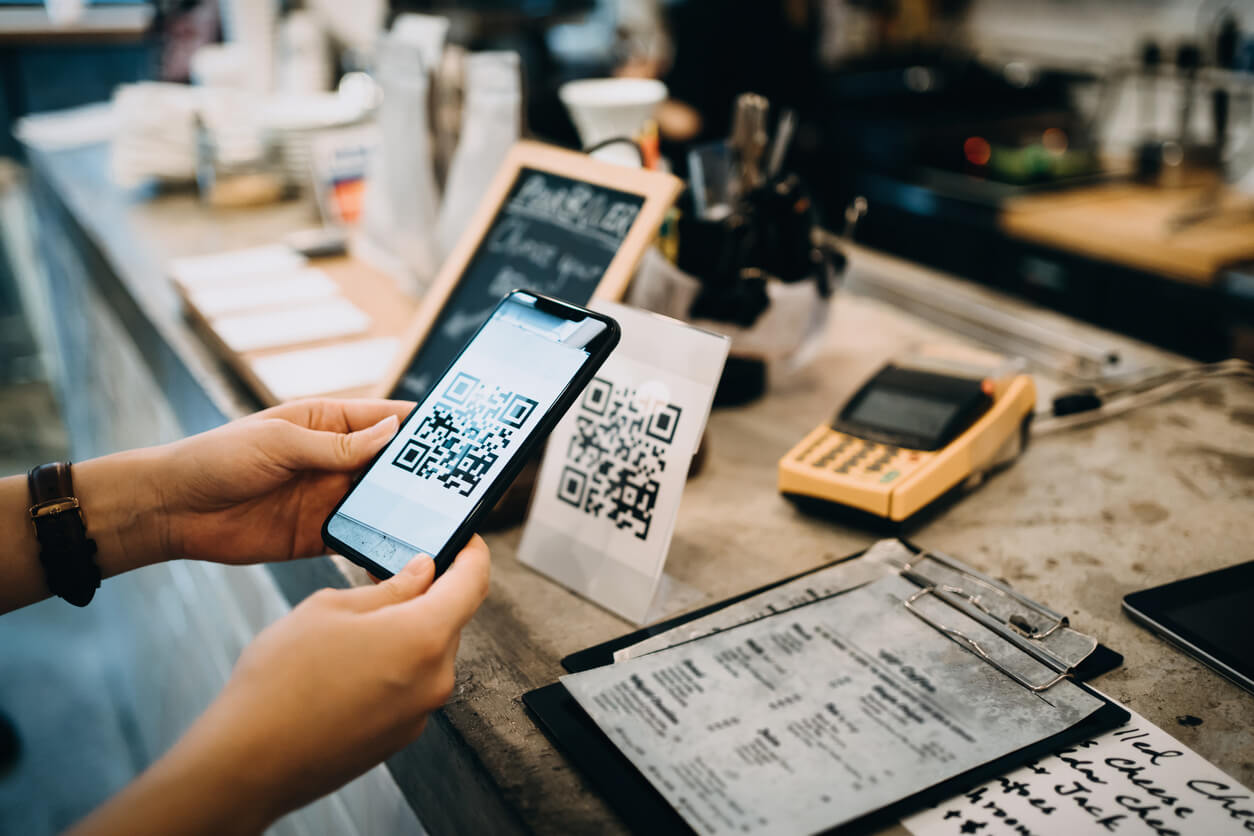

Scan a Google review QR code and it takes you straight to a business's review page. No searching, no navigating. You can create one for free through Google Business Profile in under two minutes, or use a third-party generator if you want something branded enough to put on a van door. Here's how to do both.
Method 1: Create a QR Code in Google Business Profile (Free, Two Minutes)
Google built a native QR code generator into Business Profile a while back. Most guides still haven't caught up to this, so people end up paying for third-party tools they don't need. If you just want a working code fast, start here.
Step 1: Go to business.google.com and sign in with the Google account tied to your business.
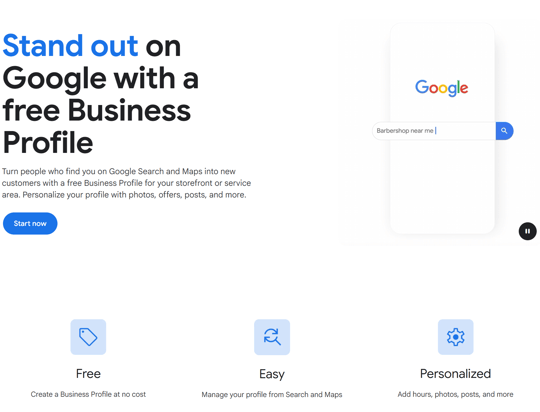
Step 2: Select the location you want to generate a code for. If you manage multiple profiles, double-check you're on the right one before you go further.
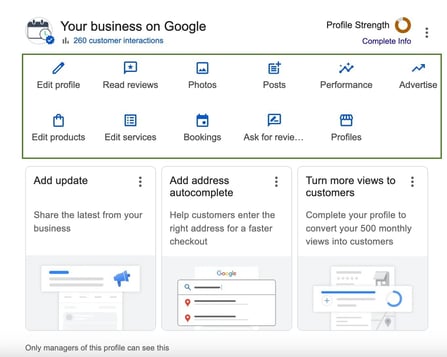
Step 3: In your dashboard, click "Ask for reviews." Depending on your interface, it'll appear in the left-hand menu or as a button on the Home tab.
Step 4: A panel opens showing your unique review link and a QR code below it. Click "Download" to save it as a PNG.
Done. The file drops straight into a document, email template, or print order.
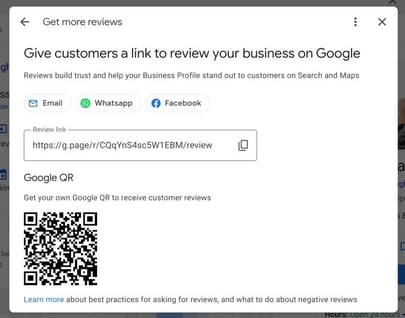
Worth knowing: the native code is plain black and white, no logo, no branding. Fine for digital use and basic print jobs. If it's going on something physical that people are supposed to notice and scan, Method 2 is worth the extra ten minutes.
Method 2: Create a Custom-Branded Google Review QR Code
A branded QR code gets scanned more often than a plain one. It looks intentional rather than like something that fell out of a form. For anything going on print materials, this is the better option.
Step 1: Grab your Google review link first. Go to your Google Business Profile dashboard, click "Ask for reviews," and copy the direct link shown in the panel.
Step 2: Go to qr-code-generator.com. The free tier works for most use cases. Paid plans unlock vector downloads, which you'll want for large-format print.
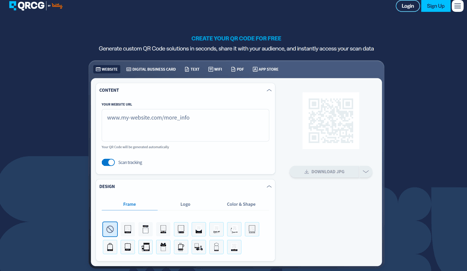
Step 3: Paste your review link into the URL field and generate the code.
Step 4: Use the design panel to add your logo and adjust the foreground color to match your brand. One important constraint: keep the background white or very light. Low contrast is the most common reason QR codes fail to scan, and it's completely avoidable.
Step 5: Download. A PNG at high resolution is fine for business cards and invoices. For van wraps or yard signs, use SVG or PDF if your plan supports it, or ask the print shop to work from a high-resolution PNG.
Before anything goes to print, test the code with two different phones from a realistic distance. A code that scans fine on your desk can fail on a rear van door if the sizing is off.
Where to Use Your Google Review QR Code
Most businesses generate the code, save it to a folder, and never think about it again. That's not a strategy. Here's where it actually gets used:
Invoice footer
Probably the highest-converting placement for trades. You're handing the invoice over right when the customer is most satisfied with the job. Add the code to the footer with something like: "Happy with the work? Scan to leave us a Google review." One line is all it needs.
Business card back. The back of a business card is almost always blank. Every card you hand out at a job, an estimate, or a trade show is now a direct path to your review page.
Job site sign. Yard signs do brand awareness. A yard sign with a QR code does brand awareness and reputation-building at the same time. Neighbors walking past are already warmer leads than most people who find you through search.
Van wrap or rear door. The back of your vehicle sits at eye level for the driver behind you at every red light. "Scan to see our reviews" takes up minimal space and works for both prospective customers and people who already know you.
Email signature. Add the QR code image to your signature with a short line below it. Every email you send after a completed job becomes a passive review request. Set it up once, and it runs forever.
Counter card or lobby display. If you have a physical office or showroom, a laminated card at the front desk catches customers while they're already standing there waiting.
Why QR Codes Get More Reviews Than Links Alone
It comes down to when and where the ask happens. A review link in a follow-up email arrives two or three days after the job, when the customer has moved on. A QR code on a paper invoice lands at job close, when the work is fresh and they're already holding their phone.

The other factor is steps. Fewer steps means more completions. Scanning a code and landing directly on a review form is faster than clicking a link, loading a page, and finding the write-a-review button. That difference is small for any individual customer and adds up across hundreds of jobs.
QR codes work best alongside automated follow-ups, not instead of them. Some customers will scan on the spot. Others won't, and a well-timed SMS two days later catches them. To maximize the potential of QR codes, it could be worthwhile to learn how to ask for reviews in a way that actually converts.
How to Make Sure QR Code Reviews Don't Get Filtered
Google's spam detection flags reviews that look coordinated.
A few things worth avoiding:
Don't set up a tablet or scan station at your office. Multiple customers scanning the same code on the same network and leaving reviews within minutes of each other looks like a review ring to Google's filters. The code works best when customers scan it at home, on their own connection, in their own time.
Don't offer anything in exchange for a review. A discount, a prize draw entry, anything really. It violates Google's policies and makes removal more likely.
Keep the link current. The QR code points to a fixed URL. If your Google account changes or your Business Profile gets updated, verify the review link still resolves correctly before reprinting materials. A broken link means every scan goes nowhere, and you won't know unless someone tells you.
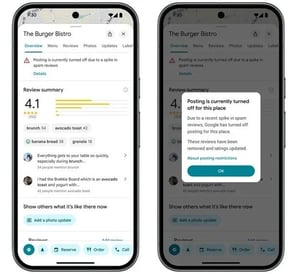
For more on why reviews sometimes disappear after posting, see why Google reviews aren't showing up and what to do about it.
Frequently Asked Questions
Is a Google review QR code free to create?
Yes. Google Business Profile's native generator costs nothing. Third-party tools like qr-code-generator.com also have free tiers that cover most use cases. Paid plans are only worth it if you need vector files for large-format print.
Do reviews left via QR code count the same as other Google reviews?
Yes. Google doesn't distinguish by how the reviewer got to the page. A review is a review.
Can one QR code cover multiple business locations?
No. Each code links to a specific Business Profile. Multiple locations means multiple codes. Generate each one from the correct profile in your dashboard.
What happens if the QR code stops working?
The code itself doesn't expire, but the destination URL can break if your Business Profile changes. If customers report issues, pull up the current review link from your GBP dashboard and check whether it still matches. If you used a dynamic QR code generator, you may be able to update the destination without reprinting.
QR codes catch customers who are already in front of you
NiceJob automates review requests via SMS and email so you're collecting reviews from every job, not just the ones where someone scans a code.
Start Free