•
Blog
NiceJob FAQ for Current Customers (Quick Answers + Help Center Links)

If you’re already using NiceJob to grow your business through reviews, referrals, and automated marketing, this FAQ is your go-to guide for the most common “how do I…?” questions from active users.
You’ll find quick answers first, plus a Help Center link under each one if you want the full step-by-step.
Last updated: January 25, 2026 (we’ll keep refreshing this as features and integrations evolve).
1) What Kinds of Features Does NiceJob Offer?
NiceJob includes:
- Review generation + automation
- Campaigns (including “Get Repeats” for repeat business)
- Website + widgets to show social proof
- Integrations with CRMs, job management, payments, and more
2) How Do I Upload My Existing Customer Contact List?
Go to People → Import contacts and upload a CSV.
Best practices:
- Include Name + Email (required)
- Add Mobile number when possible (recommended)
- If you re-import contacts that already exist, NiceJob updates details instead of creating duplicates
3) What is the “Get Repeats” Campaign, and How Does it Work?
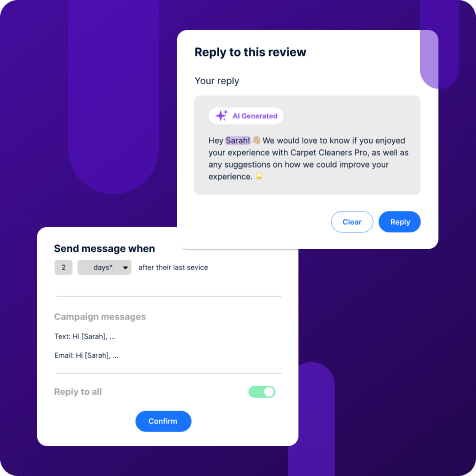
Get Repeats helps you win more repeat bookings by automatically messaging existing customers after their last service and prompting them to rebook.
How to turn it on:
- Campaigns → Get Repeats → customize timeframe + messages → Activate
- Make sure your Company Phone is set (it’s pulled into the campaign messages)
4) My Website Widget isn’t Showing (or Only Shows “Powered by NiceJob”). What Should I Do?
Common fixes:
- Disable caching (NiceJob widgets aren’t compatible with caching plugins—especially common on WordPress)
- Confirm Auto-publishing is ON (otherwise new reviews won’t appear on your site)
- If you’re using Elementor/Divi, try using the embed code from the NiceJob dashboard instead of the WordPress plugin approach
- Engage widget on mobile: check the “Show on Mobile” toggle and reinstall the code if needed
5) How Do Integrations Work with NiceJob (Example: Jobber)?
When connected to Jobber, NiceJob can automatically enroll customers into Get Reviews when you:
- Close a job, issue an invoice, or collect a payment (not including deposits)
Important rules:
- NiceJob won’t invite the same customer more than once every 6 months
- If you want to prevent invites for someone, Jobber can use a “noreview” tag to block enrollment
If you’re using Jobber, the Jobber integration can automatically enroll customers for review invites as soon as a job is closed. And if you need more flexibility than native integrations, you can connect to NiceJob through Zapier instead.
6) Can I Blog Using NiceJob’s Website Feature? What Happens to My Old Website if I Switch?
Yes—NiceJob supports blogging in a few ways:
- Micro-blogging / project-style posts through the app (with optimized pages created for projects)
- A more traditional blog can be set up with a CSV import workflow (NiceJob provides a template)
- If you’re using CMS Collections, you can run a Blog collection and add posts yourself
And your old site?
- NiceJob typically redirects your domain to the new site, so your old website remains where it is (you can keep a copy before cancelling old hosting).
7) How Do I Avoid Sending Invites Too Often (or To the Wrong People)?
A few ways customers control this:
- Integrations commonly include safeguards like no duplicate invites within ~6 months for the same customer (example: Jobber)
- You can block specific customers in your People tab (especially helpful for “Get Repeats”)
- Some integrations support tags (example: Jobber “noreview”) to prevent enrollment
8) What are “Targeted Landing Pages”?
Targeted landing pages are additional pages focused on a specific service or location (beyond your homepage’s primary focus). They’re often used for:
- Multi-location or multi-service businesses
- Better SEO for niche terms
- Higher conversion rates for specific campaigns
Pricing (as listed in the Help Center):
- $145 one-time setup fee
- $15/month per landing page
9) How Many Messages Will a Customer Receive in the “Get Repeats” Campaign?
It depends on the type of integration data you have:
- If your CRM includes Booking/Visit events → 2 SMS + 2 Emails
- If it includes only Payment/Invoice events → 1 SMS + 1 Email
10) Will Messages be Sent Too Close Together?
NiceJob spacing rules:
- Messages are never sent less than 2 days apart
11) How Does “Customer Matching” Work to Stop Messages After Someone Leaves a Review?
When a customer leaves a review, NiceJob attempts to match the name on the review to the name in your People list. When it matches, NiceJob can remove them from the campaign so they don’t receive more review prompts.
Limitations:
- If the review name and contact name don’t align, matching may fail.
- There isn’t currently a way to manually un-match once matched (it’s listed as a product request).
12) How Do I Attribute a Review to a Specific Team Member?
Two ways:
- Manual: Stories tab → click the “+” on the review → add a team member
- Automatic: via certain connected apps (when team member data is included), or when a logged-in team member sends the invite
You can view performance in Insights → Leaderboard.
13) Common Widget Issues Checklist (Fast Troubleshooting)
If widgets are broken, missing, or only show “Powered by NiceJob,” check:
- Caching plugin (turn it off / clear it)
- Auto-publishing ON (or new reviews won’t appear)
- WordPress install method (WordPress widget instructions differ; site builders may prefer dashboard embed code)
- Engage widget settings (Show on Mobile toggle; Engage shows only recent reviews, and some updates can take time)
14) How Do I Share Reviews/Stories to Social Media from NiceJob?
Two options:
Auto-sharing
- Connect your social accounts, enable auto-sharing, and set a minimum star rating.
- Auto-sharing posts up to 3 reviews/day.
Manual sharing
- Go to Stories, click the share icon on a review, then customize:
- background
- snippet
- caption
…and post to selected platforms.
Have More Questions (or a Workflow Tip)?
- Use the in-app chat (inside your NiceJob dashboard)
- Email: support@nicejob.com
Conclusion
NiceJob works best when it’s treated like an “always-on” system: reviews come in consistently, repeat business is nudged automatically, and your best social proof shows up everywhere customers decide—Google, your site, and social. When something feels off (a widget not loading, an integration not firing, a campaign sending fewer messages than expected), it’s usually a quick settings fix: confirm your integration trigger, check auto-publishing, and rule out caching conflicts.
Keep this FAQ bookmarked as a fast reference. If you need deeper walkthroughs, every section above links directly to the NiceJob Help Center, and you can always reach the support team through in-app chat or at support@nicejob.com