
•
Blog

There are three ways to do this: Google's native badge, a third-party widget, or a platform like NiceJob that pulls in new reviews automatically as they come in. Here's how each works and when each one makes sense.
Method 1: Google's Native Review Link Badge
Google offers a simple way to link visitors directly to your Google Business Profile reviews. It's not an embedded widget; it's a button or badge that opens your Google reviews page when clicked, and there’s no coding required.
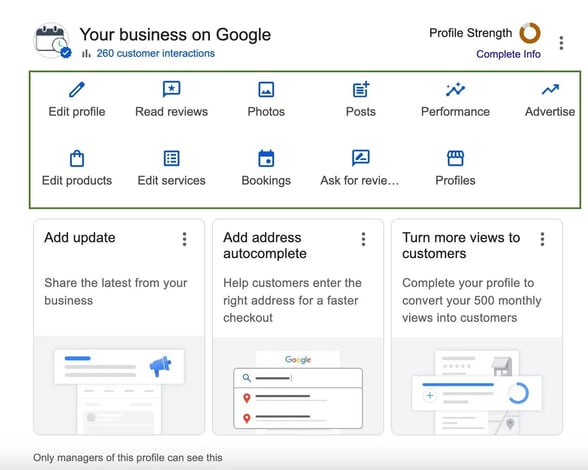
How to set it up:
- Go to your Google Business Profile and sign in.
- In your profile dashboard, click "Ask for reviews."
- Copy the review link Google generates.
- Add that link to your website as a button, image, or text link, wherever you want it to appear.
That's it. The link takes visitors to your live Google reviews page, so they see your current rating and all your reviews without any embed code on your end.
The upside: This is quick and maintenance-free You set it up once and Google keeps the link current for you.
The trade-off: It doesn't actually display your reviews on your website, since it just links out to your Google profile. Visitors have to click through and leave your site to read them. For some businesses that's a non-issue, but it adds a step between a prospective customer and the proof they're looking for.
Method 2: Embed A Google Reviews Widget
A reviews widget pulls your Google reviews directly onto your website so visitors can read them without leaving. Most widget tools offer a free tier with basic functionality and a paid plan for more control over design and filtering.
Elfsight is the most commonly used free option. Here's how to add it on the two most popular platforms:
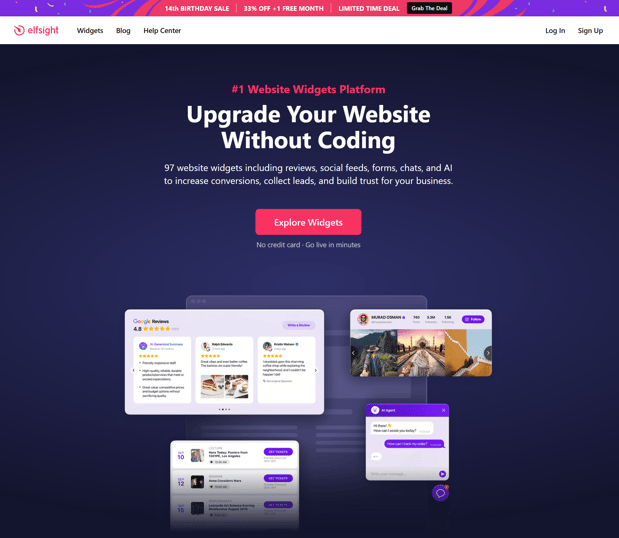
On WordPress
- Go to Elfsight.com and create a free account.
- Select "Google Reviews" from the widget library and connect your Google Business Profile.
- Customize the layout (grid, list, or carousel) and set your minimum star rating filter if you want to show only four- and five-star reviews.
- Copy the embed code Elfsight provides.
- In WordPress, go to the page or post where you want reviews to appear.
- Add a Custom HTML block and paste the embed code.
- Publish and the widget will now load your reviews from Elfsight's servers each time the page loads.
Alternatively, search for "Elfsight" in the WordPress plugin directory, install the plugin, and use the block directly in the editor without touching any code.
On Wix
- Follow steps one through four above to generate your Elfsight embed code.
- In the Wix editor, click the "+" button to add an element.
- Select "Embed Code" then "Embed a Widget."
- Paste your Elfsight code into the HTML box and click “Apply”.
- Resize and position the widget on your page, then publish.
The upside: Elfsight is free to start, and for a small business that doesn't collect reviews often, ten reviews with a manual refresh may be all you need.
The trade-off: The free plan caps you at ten reviews, includes Elfsight branding on the widget, and doesn't update in real time. It's also just a display tool: it shows reviews, but it doesn't help you generate more of them, request them, or manage your reputation. Design customization is limited too, unless you upgrade.
Paid plans start around $6/month and unlock real-time updates, more design control, and no Elfsight branding. For anyone collecting reviews regularly, the free tier goes stale fast.
Method 3: Automate It With Nicejob
NiceJob's Social Proof feature embeds a review feed on your website that updates automatically whenever you get a new review. No manual steps, no refreshing the embed, and no logging back in to anything. It also pulls from other review platforms including Facebook and Houzz, so if your customers leave reviews in more than one place, they all show up in the same feed.
Setup takes about five minutes. You connect your Google Business Profile to NiceJob, copy one snippet of code, and paste it into your website's header. From there, NiceJob handles everything, with new reviews appearing on your site as they come in.
This isn't the right fit for every business though. If you rarely get new reviews and a static display of your existing ones is sufficient, a free widget does the job. But if you're actively collecting reviews and want your website to reflect that momentum in real time, automating the display removes a task that would otherwise fall through the cracks.
Beyond displaying reviews, NiceJob helps you build the system that keeps them coming: automated review requests after every job, easy reply management, and distribution across your website and social channels, not just a display feed.
If you're on NiceJob's Sites plan, you don't need an embed code at all. NiceJob can build your entire website already wired for review automation, so reviews, requests, and your site all live in one system instead of being stitched together from separate tools.
Which Method Is Right For Your Business
| Google badge | Third-party widget (Elfsight) | NiceJob | |
| Auto-updates | No | Paid plans only | Yes |
| Shows reviews on-site | No (links out) | Yes | Yes |
| Customization | Minimal | Moderate | High |
| Setup time | Under 5 minutes | 15–30 minutes | Under 10 minutes |
| Cost | Free |
Free tier (10 reviews, branded); Paid tier~$6/month for real-time updates & no branding |
Paid (includes review automation) |
| Multi-platform reviews | No | Some plans | Yes |
| Best for | Businesses wanting a quick, no-maintenance link | Businesses wanting an embedded display without a subscription | Businesses actively collecting reviews who want hands-off display |
Why Showing Google Reviews on Your Website Matters
Displaying reviews on your website builds credibility without adding friction. Customers can see social proof right where they're already deciding whether to reach out, without any extra clicks or steps.
The freshness piece matters more than most businesses expect. Older reviews signal that a business has stopped collecting them, which is its own kind of trust problem. Keeping your on-site display current, whether through a paid widget or an automated feed, means visitors always see the version of your reputation you'd want them to see.
The Bottom Line
You already know reviews matter on your website, and that's likely why you're here. The question is how much of the work you want to own. Options range from a simple link (Method 1) to a fully automated system with NiceJob (Method 3).
If you want the manual upload work off your plate — plus review request automation, social sharing, and website maintenance handled for you — NiceJob might be the right fit for you.
FAQ
Do I need coding skills to add Google reviews to my website?
No. All three methods described above work without writing any code. The Google badge is a link, the Elfsight widget uses copy-paste HTML, and NiceJob Stories uses a single snippet you paste into your site header, and most website platforms have a dedicated field for this.
Can I show reviews from platforms other than Google?
With the Google badge or a basic Elfsight widget, no since those pull from Google only. NiceJob Stories aggregates reviews from multiple platforms including Facebook and Houzz, so you can display your full review history in one place.
Will my review widget update automatically when I get new reviews?
It depends on the method. The Google badge always reflects your current rating because it links to your live profile. Whereas Elfsight's free tier does not auto-update, reserving that as a paid plan feature. NiceJob Stories updates automatically every time a new review comes in.
What if I get a negative review? Will it show on my site?
With Elfsight, you can filter by minimum star rating before generating your embed code. NiceJob Stories also gives you control over which reviews display. For guidance on handling negative reviews when they do appear, see our negative review response examples.
Can I use a Google review QR code instead of embedding reviews on my site?
A QR code points customers to your Google review page to leave a new review. It's a collection tool, not a display tool. If you want both, they work well together. More on that in our Google review QR code guide.
Does adding Google reviews to my website affect SEO?
Displaying reviews on your website can support your SEO in indirect ways. Review content adds relevant, keyword-rich text to your pages, and fresh content signals to search engines that a page is being maintained. Structured review schema markup can also trigger star ratings in search results, which tends to improve click-through rates. That said, the stronger SEO signal comes from the reviews themselves on Google, not from displaying them on your site. We take a deeper look at how Google reviews interact with local search rankings, in a piece on whether Google reviews help SEO.
Want to go with NiceJob?
NiceJob automatically displays your newest reviews on your website, updating in real time.
Start Free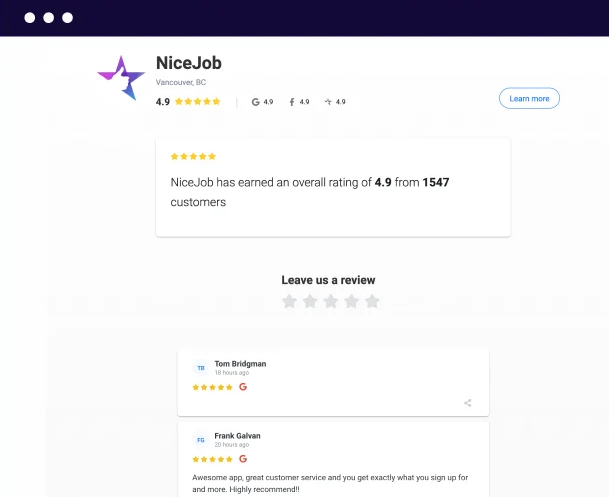
-1.png)



.jpg)